All The Help
You Need
Inclusive Technology... News...Learning at your Fingertips!

by Ian Bean, Becta ICT in Practice Award Winner 2002
and Information Manager of Inclusive Technology

First published in Special! Magazine | Reproduced with thanks | nasen Membership

Can there be a more natural and intuitive way to access a computer than by touching the objects on the screen? Pointing at something you want is a natural way to communicate; young children often point accurately and with understanding long before they can react in other ways.

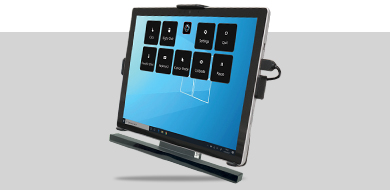
Many learners, especially those with physical, sensory or cognitive difficulties, find it difficult to use a mouse. It may require too much motor skill or be too indirect. But touch screens provide a simple, direct and wholly intuitive method of accessing a computer – the user can watch a touch screen and use it as an input method, so there is a direct connection between action and result.

Don't forget that touch skills can also be taught using your whiteboard or interactive plasma screen - and the big, bright results can be especially motivating!

Environmental and behavioural issues

All too often learners, especially younger ones, sit at computers that are incorrectly positioned. Their wheelchair may not fit under the table or they might have trouble reaching the screen. Try to ensure that they are seated comfortably and can easily activate the screen. This may involve the use of a height adjustable trolley or mounting the screen on a flexible arm.

Touch screens are designed to be touched with fingers and can quickly become dirty. Ensure that it is clean and positioned to minimise glare.

Children need to learn to use ICT equipment responsibly and safely. There are lots of dangers; learners may slap the monitor or pull on the wires. Ensure that learners are carefully supervised. It is a good strategy to work on it for short periods of two or three minutes, alternating with an off-computer activity. Give lots of encouragement and praise, especially when they are working well. As their attention span develops, increase the time spent on the computer until they can work more independently.

Touch Screen Skills - Prompts and Cues

Although young children instinctively reach out to touch and explore objects, those with more profound impairments may need some support and encouragement. For many, this will involve little more than motivating vocal prompting. Others may need you to guide their hand to the screen.
Here are a few prompting strategies that you could try;

  • Place your arm directly under the learner’s. Move your arm slowly, modelling precisely the movement you wish the learner to make. Don’t forget the verbal prompt.
  • Place your hand under the learner’s wrist and move slowly toward the screen while giving a clear vocal prompt.
  • Gently touch the learner’s elbow while giving a vocal prompt.

Remember to give the learner time to move independently before physically prompting them and to gradually reduce and withdraw prompting when it is no longer needed. Also remember to encourage them to remove their hand from the screen after touching it so they can see the effects they have created. This helps to develop and reinforce the discrete ‘press and release’ method of activation that they will need as they refine their targeting skills. Also try to encourage the learner to use their fingertips rather than their palms.

Let’s Make Something Happen

Learners need to understand that they can exert control over their environment. This important concept is called ‘cause and effect’ and is pivotal to all future learning. Imagine a baby throwing a toy from their pram (and having mum pick it up) or a child pressing the button on a jack-in-the-box to make it pop up – they are exploring the concept of cause and effect. Touch screens are ideal for learners to experience cause and effect – by simply touching the screen they can make all sorts of things happen.

There is a wide range of software available to support learning at this very early stage. Useful programs include Big Bang and the SwitchIt! series. The Actions activity in Big Bang has explosive animated fireworks, flying bubbles and stars to reward the student for touching the screen.

When the learner understands that their action is causing the on-screen effects, you can move on to touch building. This requires the learner to touch the screen a fixed number of times Big Bang on The Inclusive Interactive Plasma Screenbefore receiving a reward. This helps build prediction and anticipation skills and reinforces the concept that they may have to complete a sequence of events in order to achieve a desired outcome.

Try the Builds activity in Big Bang. The screen changes after each touch, so don't forget to pause between presses to check that the student has noticed these changes. After the fourth press, the animation will activate – you can reinforce this by counting out each press… 1… 2… 3… GO!

Other titles that support these skills include Abrakadabra, Happy Duck and the SwitchIt! series. You could use the options menus to gradually increase the number of presses required to obtain the reward.

Targeting Objects

To introduce targeting, you could have objects simply pop up under the learner’s finger when they touch the screen. The 'Click Anywhere' activity in IT Mouse Skills is useful for this, and it can be set to activate when the student removes their finger from the screen. Each time they touch and release a little 'Inky' character will pop up under their finger.

When the learner understands that it is their finger which is causing the Inkies to appear, try the ‘Single Click’ activity. This time, encourage the learner to touch the Inky that appears on the screen. Touch Balloons on The Inclusive Interactive Plasma ScreenIf their targeting is successful the screen will clear and the learner will be rewarded.

Once the learner has become proficient at targeting stationary objects, it’s time to build on that skill by tracking and targeting moving objects. Touch Balloons is ideal for this. Keep the settings nice and simple – begin with a single balloon in a gentle left to right motion. You can set the program to pop the balloons if the user almost touches them, to make things even easier. Then encourage the student to track the balloon across the screen for a short while before attempting to touch it. As their accuracy improves you can increase the number and speed of the balloons.

Dragging and Dropping

Some touch monitors have the facility to drag and drop using your fingers. Basically, the learner needs to touch the object, maintain contact while moving it to a new position and release to ‘drop’ it. IT Mouse Skills has three activities you can use to learn and generalise this important skill. You could also try Touch Games 1 & 2.

Making Choices

Learning to target on-screen objects is not the end, rather the beginning. By progressing to making choices, the learner can use the touch screen in a meaningful and productive way.

Choose and Tell: Nursery Rhymes has been designed to enable children with little or no literacy skills to ‘write’ their own stories. Choose a nursery rhyme character using the touch screen and work with the learner to make a story by selecting from the options displayed. (You can limit the choices to two initially). Take some time to talk about the story as it develops and encourage the learner to predict the outcomes of their decisions. Remember, the objective here is not to be able to target the object on the screen, but to develop decision making skills.

As the learner becomes more proficient you can add a third choice and then reveal the 'back' button. Using these tools your students can enjoy independent story ‘writing’.

ChooseIt! Maker 2 in useChooseIt! Maker 2 is an open framework tool you can use to create your own activities to support work on any topic. It is ideal for use with touch monitors, particularly at this level, as you can manage the number of on-screen choices that are available. You can display up to six choices, allowing progression and enabling differentiation. The activities in ChooseIt! Maker 2 require some level of cognition so don’t be afraid to start with two choices (a right and wrong answer) before moving on. As the student becomes more adept you can increase the number of choices available.

Where to go next?

By now your student should be able to use a touch screen, not only to target objects, but also to choose specific objects to solve problems. So where do we go next?

Because a touch monitor emulates the action of the mouse, almost all software can be used with it. Titles such as Clicker can be used to create a huge range of resources to support learning across the curriculum. Art packages such as Dazzle 3 can be used to create imaginative artwork. The possibilities are endless...